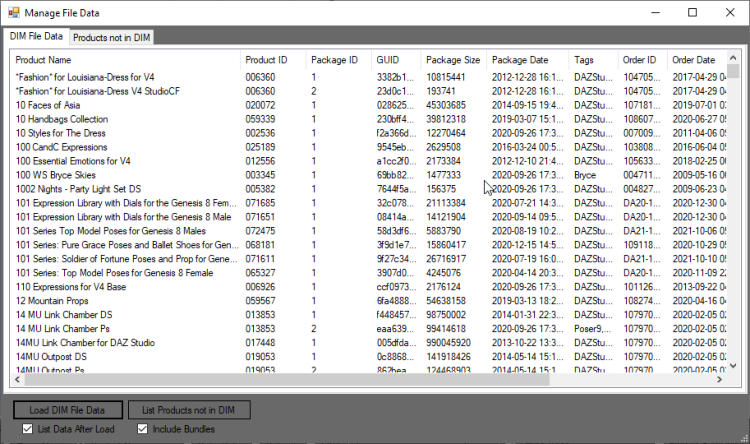
MANAGE FILE DATA FEATURE
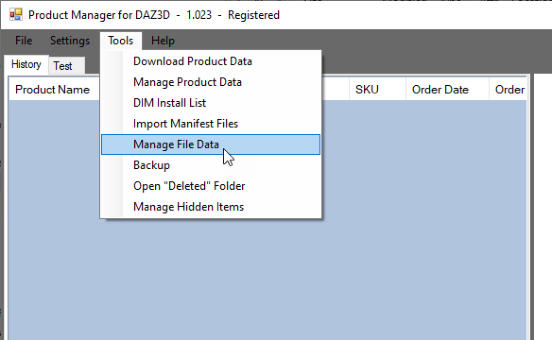
This feature is experimental and not yet finished. You can find it here:
It currently includes:
Tab 1: a list showing all data for those of your product files which can be installed by DIM
Tab 2:. a list of the products in your Product Library which are not available for installation in DIM
Click the Load DIM File Data button to load the DIM data. If you want to view all the file data after load
as shown above, check the List Data After Load checkbox first.
Click the List Products not in DIM button to list these products. The Include Bundles checkbox will
toggle between including/excluding bundles.
IMPORTANT: IMPORT DIM DATA FIRST
To use this feature you must first export all the file data in DIM to DAZ Product Manager:
1. go online with DIM and update your data
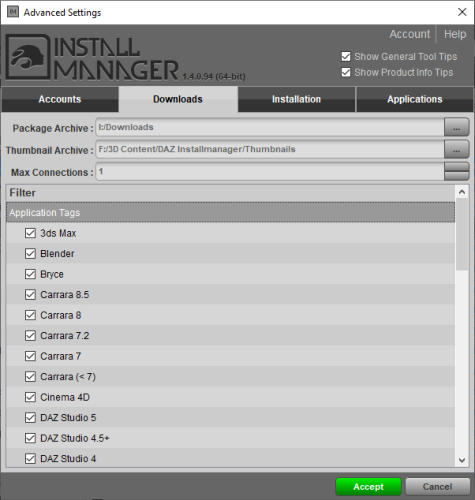
2. in DIM, under Advanced Settings, checkmark all the boxes in the Filter on the Downloads tab
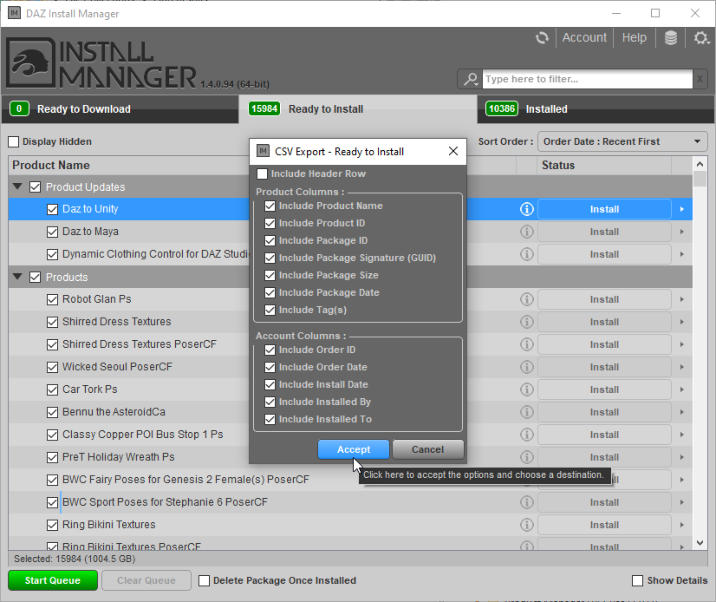
3. on each of the 3 file listing tabs in DIM, checkmark all files, then right click and select Export Selected
to CSV from the context menu
4. in the CSV Export dialogs, check all boxes except Include Header Row, and click Accept. Use the
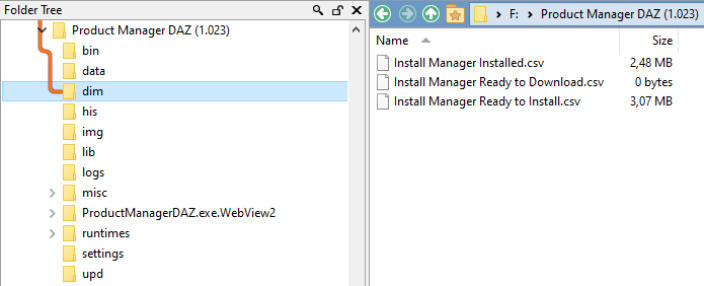
default file names generated by DIM. If you don't have any files on the Downloads tab, just create an
empty Install Manager Ready to Download.csv text file
5. in the DAZ Product Manager main folder create a dim folder, put the exported CSVs in that folder,
and you’re done.